
Serving Purulia Since 2009+91 9734290001
Dalmia Computers original logoDalmia ComputersPurulia’s Premium Tech Destination
LoginWhatsApp
Maintenance · printers · safe ownership

Maintain a printer by condition and manufacturer guidance—not a made-up schedule

Maintain paper, supplies, software, network and print quality with an evidence-based checklist that respects the exact printer model.

Beginner8 min checklistSource review: 14 Aug 2026
Dalmia Computers Purulia Brand Concierge — Independent Buying Knowledge & B2B Desk
Purulia Concierge Desk · Thoughtful Technical Mentor

Independent Buying Knowledge & B2B Desk

Understand specifications, GST/Tally workflows and compatibility principles clearly before committing to hardware.

Har Page = Smart Salesman · Honest Purulia Guidance

Interactive Need-Finder, Compatibility Check & Overspend Guard

Answer 3 quick skippable questions (zero login or phone gate) to see workload-matched tiers, 4-state compatibility checks, running-cost / EMI / 18% GST calculators, and live showroom demo availability.

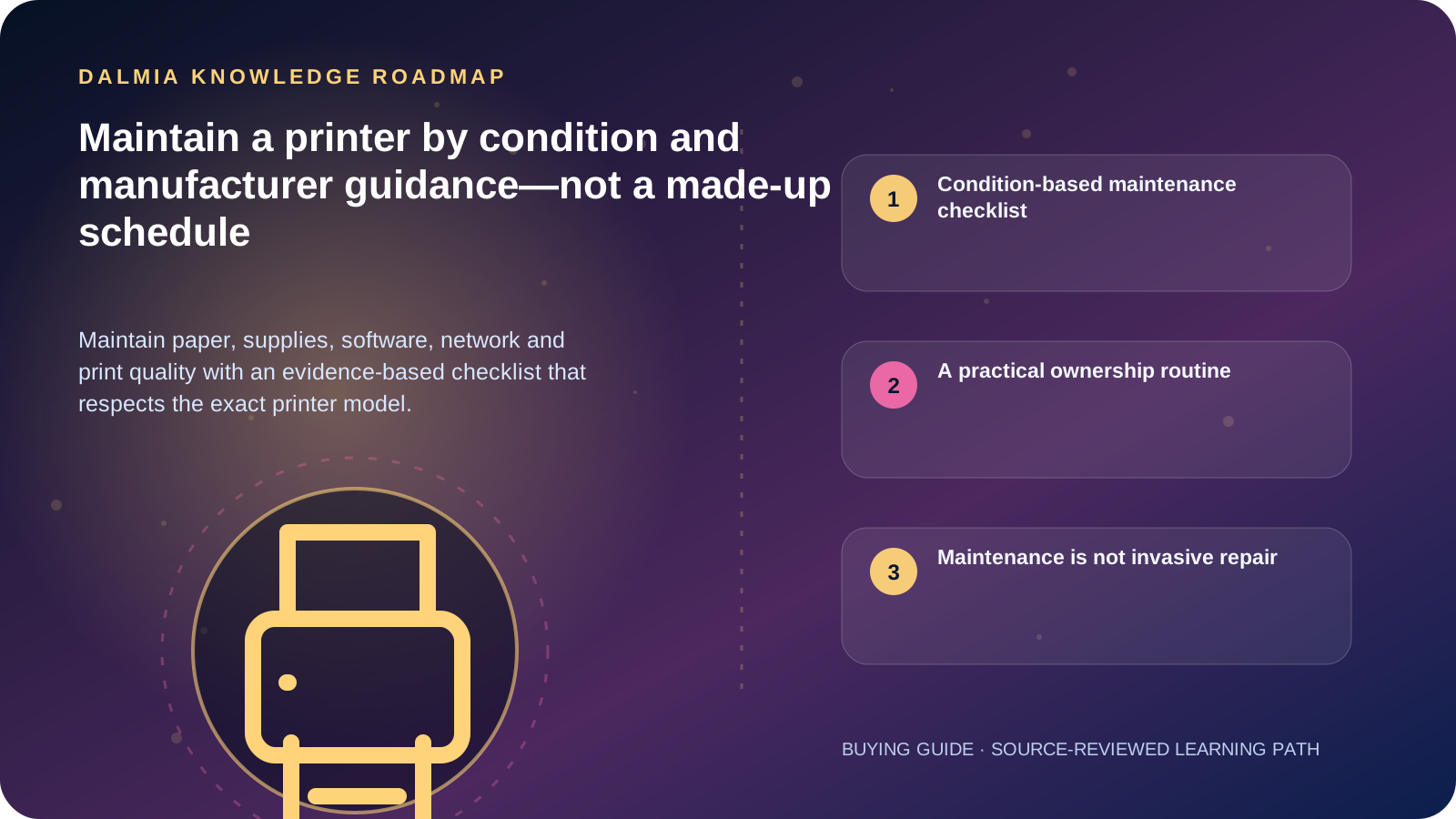
Visual roadmap for Maintain a printer by condition and manufacturer guidance—not a made-up schedule
Article roadmap covering Condition-based maintenance checklist, A practical ownership routine, Maintenance is not invasive repair.
Quick answer

Keep the printer on a stable, clean and ventilated surface; store supported paper and supplies correctly; review alerts; print a diagnostic page when quality changes; and use only the exact model's documented cleaning procedure. Record page count, supply changes, error codes and maintenance results. There is no universal cleaning interval for every printer, and unnecessary printhead cleaning consumes ink.

Condition-based maintenance checklist

What to inspect and when
TriggerSafe actionRecord
Before a new paper or media typeConfirm supported size, weight, surface and tray settingsMedia name and printer setting
Supply replacement or refillFollow the exact model instructions and avoid touching sensitive surfacesSupply reference, date and page count
Quality changesPrint a diagnostic or nozzle-check page before cleaningDefect sample and test result
Jam or feed warningUse only documented user-access paths after power and heat precautionsPaper condition, location and recurrence
Software, firmware or network changeUse the verified vendor channel and preserve required settingsPrevious version, change and rollback information
Long idle period or relocationInspect environment, paper condition, cables and a supported test pageHumidity exposure, transport and new connection

A practical ownership routine

  • Keep vents, trays and output areas unobstructed without using unapproved liquids or tools.
  • Store paper flat and dry; fan or condition it only when the manufacturer recommends that method.
  • Keep a small log of page count, supplies, recurring codes, diagnostic pages and service actions.
  • Use sleep, automatic power management and duplex only where they fit the workflow and exact model.
  • Test printing from the intended operating systems after planned updates, especially for a shared business printer.
  • Protect network administration with unique credentials and avoid exposing a printer management page directly to the internet.

Maintenance is not invasive repair

User maintenance ends where the model documentation ends. Laser fusers, high-voltage sections, imaging surfaces, ink-delivery assemblies and internal power components may require trained service and model-specific precautions.

A recurring jam, electrical smell, smoke, leak, grinding noise or quality fault that returns after the documented test-and-maintain cycle should be recorded and escalated rather than hidden by repeated resets.

Sources and further reading

Technical statements were reviewed against these references. External pages may change after our review date.

  1. Print Head Maintenance — Epson Support
  2. Interpret the Print Quality Report — HP Support
  3. Imaging Equipment — ENERGY STAR
Editorial standard

Educational content is separated from current stock, price, warranty and authorization claims. Corrections can be reported through the Dalmia contact desk.

Royal Violet Orbit Gallery · Ink Tank, Laser & Office Printers

Technical Reference & Workload Showcase

Explore Ink Tank, Laser & Office Printers →
ADF Office Multifunction #019 Ultra-Low Cost Per Page CMYK
Monochrome Auto-Duplex Laser #026 Borderless A4 Photo Precision
High-Yield Duplex Ink Tank #033 Ethernet + Dual-Band Wi-Fi Print
Heavy-Duty Network Laserjet #040 35-Sheet Auto Document Feeder
Wi-Fi Direct Home-Office AIO #047 Duty-Cycle Matched to Monthly Load
School Exam Bulk Print System #054 Genuine Toner & Drum Longevity
Purulia Flagship Cinema · Interactive Chapters

Step Inside Dalmia Computers Purulia

Experience multi-brand laptops, 5G smartphones, custom PC builds, printers, CCTV planning, TallyPrime 7.1 and 7-stage OTP-verified repair care at Bikash Bhawan, Near ICICI Bank, Ranchi Road.

Verified Public Feedback · Google Place ID ChIJs4oLWox99jkRqigm5jEVJiE

Read Real Purulia Customer Feedback Before You Decide

Open the live Trustindex Google Reviews stream right here without slowing down initial page load, or visit our full Reviews & Social Hub.

Write a Review ★ Reviews & Social Hub → Google Maps ↗
Dalmia Smart Showroom Desk · Instant DB Prefill Ready

Send Your Shortlist or Ask for Live Availability

Returning customers enjoy instant smart phone memory. No payment is collected online — our Purulia showroom confirms exact stock and GST pricing.

No online payment is collected. Current stock, exchange inspection and GST pricing are confirmed by our Ranchi Road team.

Join @dalmiacomputers VIP Community & Reviews Unboxings, tech care guides, monthly 13-rank gifts & verified Purulia showroom updates.
CallWhatsApp