
Serving Purulia Since 2009+91 9734290001
Dalmia Computers original logoDalmia ComputersPurulia’s Premium Tech Destination
LoginWhatsApp
Cyber safety · connected devices

How to secure a router and CCTV camera network

Plan safer router, Wi-Fi and IP-camera access with unique credentials, updates, segmentation, restricted remote access and recovery records.

Intermediate10 min guideSource review: 14 Aug 2026
Dalmia Computers Purulia Brand Concierge — Independent Buying Knowledge & B2B Desk
Purulia Concierge Desk · Thoughtful Technical Mentor

Independent Buying Knowledge & B2B Desk

Understand specifications, GST/Tally workflows and compatibility principles clearly before committing to hardware.

Har Page = Smart Salesman · Honest Purulia Guidance

Interactive Need-Finder, Compatibility Check & Overspend Guard

Answer 3 quick skippable questions (zero login or phone gate) to see workload-matched tiers, 4-state compatibility checks, running-cost / EMI / 18% GST calculators, and live showroom demo availability.

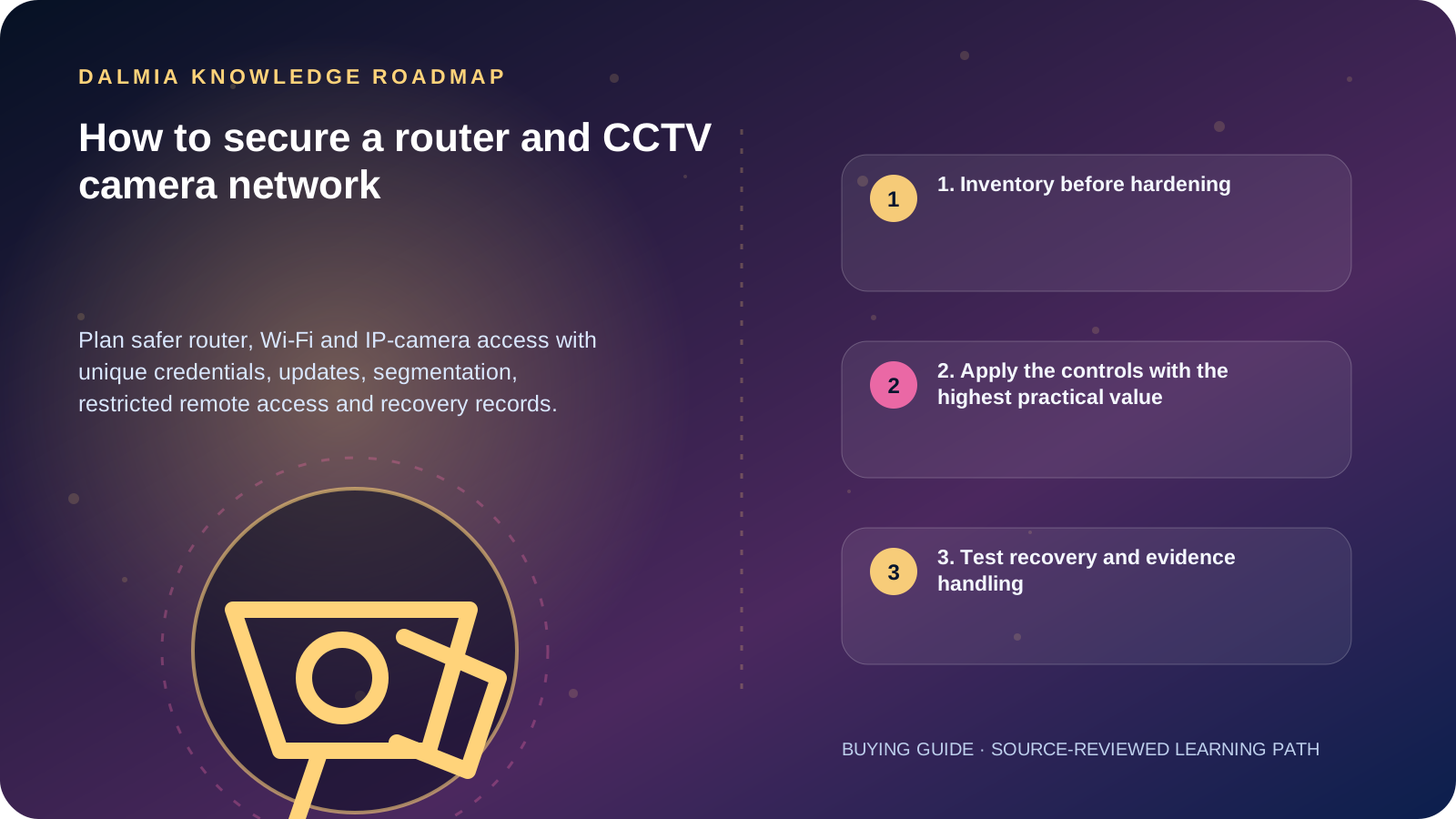
Visual roadmap for How to secure a router and CCTV camera network
Article roadmap covering 1. Inventory before hardening, 2. Apply the controls with the highest practical value, 3. Test recovery and evidence handling.
Quick answer

Change default credentials, apply supported firmware updates, disable services you do not need, restrict administration, use modern encrypted Wi-Fi, separate IoT devices where practical and avoid direct public-internet exposure. Remote access should be documented, least-privilege and recoverable.

1. Inventory before hardening

Record the router, access points, switches, recorder, cameras, mobile apps, cloud services and accounts that can administer or view the system. Note the exact model, firmware, owner, network address and support status.

Unknown devices and undocumented port forwarding create blind spots. Preserve a protected configuration backup and recovery path before changing network settings.

2. Apply the controls with the highest practical value

  1. Replace every default administrator credential with a unique strong password; use MFA where the supported service provides it.
  2. Install current manufacturer-supported firmware and remove equipment that no longer receives critical security fixes when risk warrants it.
  3. Use WPA2 or WPA3 as supported, a strong unique Wi-Fi passphrase and a separate management credential.
  4. Disable unused remote administration, UPnP, guest access, services and user accounts.
  5. Place cameras and other IoT equipment on a separate network or VLAN where practical, then allow only required communication.
  6. Prefer an access-controlled VPN or a manufacturer-documented secure remote method over direct port forwarding.
  7. Give viewers only the permissions they need, review access periodically and remove former users promptly.
  8. Monitor device time, failed logins, unexpected configuration changes and storage health.

3. Test recovery and evidence handling

Document how to restore the router and recorder, who can access backups, and how footage is exported without changing the original evidence. Test that required users can still reach live and recorded video after hardening.

Do not publish camera addresses, credentials, recovery codes or network diagrams. If compromise is suspected, preserve logs and obtain qualified support before factory-resetting devices that may contain useful evidence.

Sources and further reading

Technical statements were reviewed against these references. External pages may change after our review date.

  1. Using Wireless Technology Securely — Cybersecurity and Infrastructure Security Agency
  2. Securing Small-Business and Home IoT Devices — National Institute of Standards and Technology
  3. Profile S Deprecation Q&A — ONVIF
Editorial standard

Educational content is separated from current stock, price, warranty and authorization claims. Corrections can be reported through the Dalmia contact desk.

Royal Violet Orbit Gallery · CCTV Surveillance & Access Security

Technical Reference & Workload Showcase

Explore CCTV Surveillance & Access Security →
4G Solar Remote Site Camera #024 Site Angle & Blind-Spot Survey
Biometric Attendance + Door Lock #031 Smart Human/Vehicle Line Alert
School Campus Multi-Floor NVR #038 Weatherproof IP67 Metal Housing
ANPR Gate & Driveway Bullet #045 H.265+ Surveillance HDD Sizing
2-Way Audio Smart Dome #052 Site Angle & Blind-Spot Survey
16-Channel Warehouse NVR Grid #059 Smart Human/Vehicle Line Alert
Purulia Flagship Cinema · Interactive Chapters

Step Inside Dalmia Computers Purulia

Experience multi-brand laptops, 5G smartphones, custom PC builds, printers, CCTV planning, TallyPrime 7.1 and 7-stage OTP-verified repair care at Bikash Bhawan, Near ICICI Bank, Ranchi Road.

Verified Public Feedback · Google Place ID ChIJs4oLWox99jkRqigm5jEVJiE

Read Real Purulia Customer Feedback Before You Decide

Open the live Trustindex Google Reviews stream right here without slowing down initial page load, or visit our full Reviews & Social Hub.

Write a Review ★ Reviews & Social Hub → Google Maps ↗
Dalmia Smart Showroom Desk · Instant DB Prefill Ready

Send Your Shortlist or Ask for Live Availability

Returning customers enjoy instant smart phone memory. No payment is collected online — our Purulia showroom confirms exact stock and GST pricing.

No online payment is collected. Current stock, exchange inspection and GST pricing are confirmed by our Ranchi Road team.

Join @dalmiacomputers VIP Community & Reviews Unboxings, tech care guides, monthly 13-rank gifts & verified Purulia showroom updates.
CallWhatsApp