
Serving Purulia Since 2009+91 9734290001
Dalmia Computers original logoDalmia ComputersPurulia’s Premium Tech Destination
LoginWhatsApp
Troubleshooting · safety first

Laptop not starting? Check the symptom before the solution

Use a safe symptom-first checklist when a laptop will not start, charge or show a picture—and learn when to stop and seek service.

Beginner7 min checklistSource review: 14 Aug 2026
Dalmia Computers Purulia Brand Concierge — Independent Buying Knowledge & B2B Desk
Purulia Concierge Desk · Thoughtful Technical Mentor

Independent Buying Knowledge & B2B Desk

Understand specifications, GST/Tally workflows and compatibility principles clearly before committing to hardware.

Har Page = Smart Salesman · Honest Purulia Guidance

Interactive Need-Finder, Compatibility Check & Overspend Guard

Answer 3 quick skippable questions (zero login or phone gate) to see workload-matched tiers, 4-state compatibility checks, running-cost / EMI / 18% GST calculators, and live showroom demo availability.

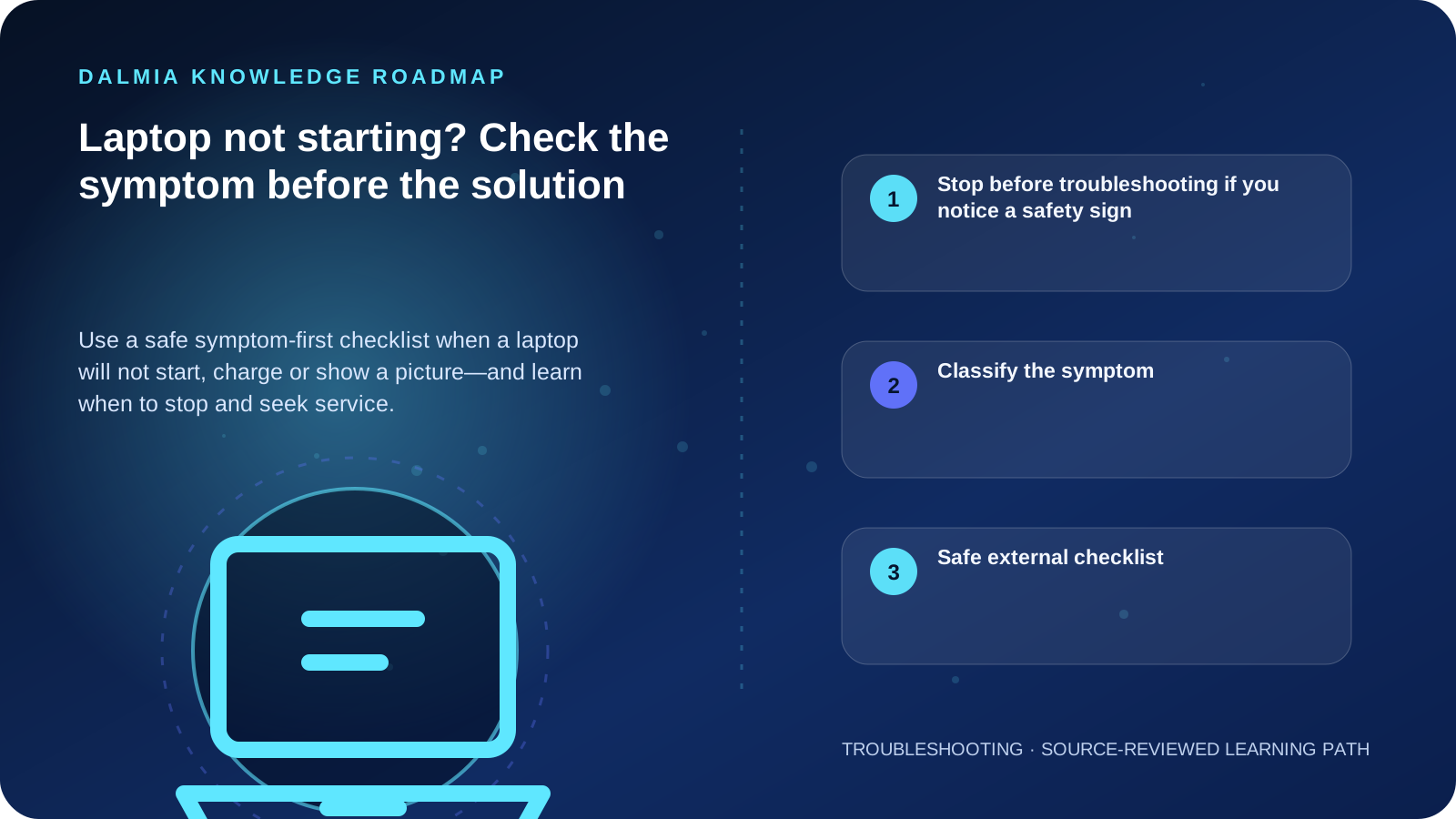
Visual roadmap for Laptop not starting? Check the symptom before the solution
Article roadmap covering Stop before troubleshooting if you notice a safety sign, Classify the symptom, Safe external checklist.
Quick answer

First identify whether the laptop has no power, has power but no picture, or begins loading and then fails. Disconnect unnecessary accessories, verify the correct charger and outlet, and observe lights, fan sound or screen activity. Stop immediately for swelling, liquid exposure, burning smell, sparks or excessive heat.

Stop before troubleshooting if you notice a safety sign

  • Battery or case swelling
  • Burning smell, smoke, sparks or crackling
  • Liquid inside the laptop or charger
  • Damaged cable insulation, bent power connector or unusual charger heat
  • A recent fall followed by internal movement or damage

Classify the symptom

What the first symptom may help you distinguish
SymptomWhat to observeSafe next step
No light, sound or fanOutlet, charger indicator and power connectorVerify known-good power path and correct charger specification
Lights or fan, no pictureBrightness, external display, startup soundsRemove accessories and check whether the display path is the issue
Logo appears, then stopsError text, repeating restart or recovery screenRecord the exact message; avoid repeated forced shutdowns
Starts only on chargerBattery status and swellingCheck battery health and seek service if the battery is abnormal

Safe external checklist

  1. Disconnect USB devices, memory cards, docks and external displays.
  2. Confirm the wall outlet works with another low-risk device.
  3. Check that the charger belongs to the laptop and matches its required connector and power specification.
  4. With power disconnected, hold the laptop power button for about 15 seconds, then reconnect the charger and try once. This does not apply when a manufacturer documents a different reset method.
  5. Increase screen brightness and look for a faint image or external-display output if the laptop otherwise appears to start.
  6. Photograph or write down any light pattern, beep sequence or error message before seeking support.

When service is the responsible next step

Seek professional diagnosis when the correct power path is verified but the laptop remains dead, when the charging connector is loose or damaged, when the system repeatedly shuts down, or when opening the device would risk data, warranty or safety.

Bring the laptop, its charger and a description of what happened before the failure. If data is important, state that before any reset, operating-system installation or storage work.

Sources and further reading

Technical statements were reviewed against these references. External pages may change after our review date.

  1. Caring for your battery in Windows — Microsoft Support
  2. Device performance and health in the Windows Security app — Microsoft Support
Editorial standard

Educational content is separated from current stock, price, warranty and authorization claims. Corrections can be reported through the Dalmia contact desk.

Royal Violet Orbit Gallery · Laptops & Ultrabooks

Technical Reference & Workload Showcase

Explore Laptops & Ultrabooks →
Long-Battery Travel Pro #040 16GB Dual-Channel + NVMe Gen4
CA & GST Accounting Laptop #047 Wi-Fi 6E + FHD Privacy Shutter
AI NPU Thin-and-Light #054 Spill-Resistant Backlit Deck
Student & Coding Ultrabook #061 100% DCI-P3 Factory Calibrated
Everyday Campus Companion #068 Expandable SO-DIMM + Dual M.2
2-in-1 Convertible Touch #075 Dual Heatpipe Vapor Cooling
Purulia Flagship Cinema · Interactive Chapters

Step Inside Dalmia Computers Purulia

Experience multi-brand laptops, 5G smartphones, custom PC builds, printers, CCTV planning, TallyPrime 7.1 and 7-stage OTP-verified repair care at Bikash Bhawan, Near ICICI Bank, Ranchi Road.

Verified Public Feedback · Google Place ID ChIJs4oLWox99jkRqigm5jEVJiE

Read Real Purulia Customer Feedback Before You Decide

Open the live Trustindex Google Reviews stream right here without slowing down initial page load, or visit our full Reviews & Social Hub.

Write a Review ★ Reviews & Social Hub → Google Maps ↗
Dalmia Smart Showroom Desk · Instant DB Prefill Ready

Send Your Shortlist or Ask for Live Availability

Returning customers enjoy instant smart phone memory. No payment is collected online — our Purulia showroom confirms exact stock and GST pricing.

No online payment is collected. Current stock, exchange inspection and GST pricing are confirmed by our Ranchi Road team.

Join @dalmiacomputers VIP Community & Reviews Unboxings, tech care guides, monthly 13-rank gifts & verified Purulia showroom updates.
CallWhatsApp