
Serving Purulia Since 2009+91 9734290001
Dalmia Computers original logoDalmia ComputersPurulia’s Premium Tech Destination
LoginWhatsApp
Troubleshooting · Windows · audio

No sound in Windows? Find which audio layer stopped working

Diagnose Windows audio without random driver downloads by testing the selected output, hardware, app, permissions, services and supported driver path.

Beginner to intermediate9 min checklistSource review: 14 Aug 2026
Dalmia Computers Purulia Brand Concierge — Independent Buying Knowledge & B2B Desk
Purulia Concierge Desk · Thoughtful Technical Mentor

Independent Buying Knowledge & B2B Desk

Understand specifications, GST/Tally workflows and compatibility principles clearly before committing to hardware.

Har Page = Smart Salesman · Honest Purulia Guidance

Interactive Need-Finder, Compatibility Check & Overspend Guard

Answer 3 quick skippable questions (zero login or phone gate) to see workload-matched tiers, 4-state compatibility checks, running-cost / EMI / 18% GST calculators, and live showroom demo availability.

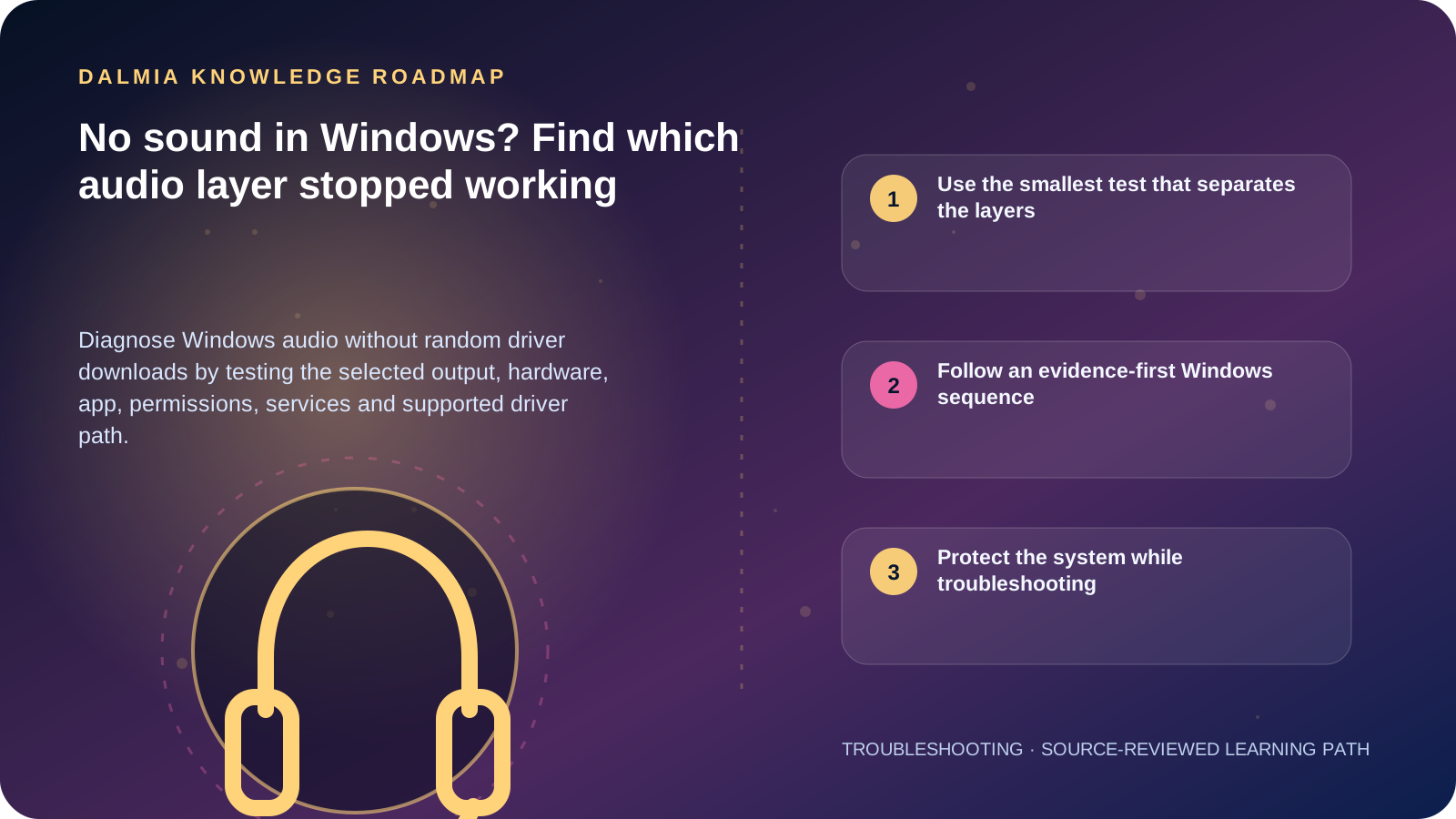
Visual roadmap for No sound in Windows? Find which audio layer stopped working
Article roadmap covering Use the smallest test that separates the layers, Follow an evidence-first Windows sequence, Protect the system while troubleshooting.
Quick answer

First confirm the intended output device is selected and unmuted, then test a Windows system sound or a known local file. If every app is silent, check the cable or wireless connection, device enablement, Windows troubleshooter, updates and the supported driver path. If only one app fails, inspect that app's output, volume and permissions. Avoid random driver-download sites and preserve the previous working driver when an update appears to have triggered the fault.

Use the smallest test that separates the layers

Audio symptoms and the next useful check
ObservationInvestigate nextDo not assume
Only one app is silentApp volume, selected device, permissions and contentThe speaker or driver has failed
System sounds work but browser media does notBrowser tab/site mute, output and permissionsWindows audio services need reinstalling
HDMI display selected but display has no speakerWindows output selectionThe laptop speaker is defective
Headphones work but built-in speaker does notSpeaker output, jack detection and device stateEvery audio component is faulty
Audio stopped after an updatePending restart, supported driver update or rollbackA generic third-party driver is safer

Follow an evidence-first Windows sequence

  1. Record the Windows version, device model, affected apps, selected output and what changed before sound stopped.
  2. Check physical volume, power, cable or wireless connection and select the intended output from Windows Sound settings.
  3. Confirm the device and relevant app are not muted or disabled, then test a system sound and a known local file.
  4. Run the supported Windows audio troubleshooter and install pending Windows updates through the official settings path.
  5. If the fault follows an update, use Device Manager and the device manufacturer's supported driver guidance; preserve the option to roll back where Windows provides it.
  6. Test one known-good wired output where available to separate Bluetooth, HDMI, jack and internal-speaker paths.
  7. Escalate with the selected output, Device Manager state, error code, update history and which tests passed.

Protect the system while troubleshooting

Microsoft's current guidance separates output selection, cables, mute/device state, troubleshooting, updates, drivers, services and app permissions. That order avoids turning a routing mistake into a risky reinstall.

Windows 10 reached end of support on 14 October 2025. A device may still run, but an unsupported operating system is a security and maintenance concern separate from the immediate audio fault.

Sources and further reading

Technical statements were reviewed against these references. External pages may change after our review date.

  1. Fix sound or audio problems in Windows — Microsoft Support
  2. Fix audio stops working after a Windows update — Microsoft Support
Editorial standard

Educational content is separated from current stock, price, warranty and authorization claims. Corrections can be reported through the Dalmia contact desk.

Royal Violet Orbit Gallery · Audio Universe, Creator Mics & Headsets

Technical Reference & Workload Showcase

Explore Audio Universe, Creator Mics & Headsets →
Conference Speakerphone Array #046 Clear-Voice AI Boom Microphone
Low-Latency Gaming 7.1 Headset #053 24-Bit Studio DAC Monitoring
Office Call-Center ENC Headset #060 Cardioid Vocal Isolation Capsule
Dolby Soundbar & Subwoofer Stage #067 Acoustic Room & Desk Placement
Podcast & YouTube USB/XLR Mic #002 Multipoint Laptop + Phone Pairing
Hybrid ANC Wireless Headphones #009 42dB Adaptive Noise Cancellation
Purulia Flagship Cinema · Interactive Chapters

Step Inside Dalmia Computers Purulia

Experience multi-brand laptops, 5G smartphones, custom PC builds, printers, CCTV planning, TallyPrime 7.1 and 7-stage OTP-verified repair care at Bikash Bhawan, Near ICICI Bank, Ranchi Road.

Verified Public Feedback · Google Place ID ChIJs4oLWox99jkRqigm5jEVJiE

Read Real Purulia Customer Feedback Before You Decide

Open the live Trustindex Google Reviews stream right here without slowing down initial page load, or visit our full Reviews & Social Hub.

Write a Review ★ Reviews & Social Hub → Google Maps ↗
Dalmia Smart Showroom Desk · Instant DB Prefill Ready

Send Your Shortlist or Ask for Live Availability

Returning customers enjoy instant smart phone memory. No payment is collected online — our Purulia showroom confirms exact stock and GST pricing.

No online payment is collected. Current stock, exchange inspection and GST pricing are confirmed by our Ranchi Road team.

Join @dalmiacomputers VIP Community & Reviews Unboxings, tech care guides, monthly 13-rank gifts & verified Purulia showroom updates.
CallWhatsApp